
Your QBO balance doesn’t match your bank statement — don’t panic. Here are the 6 most common reasons it happens and exactly what to check first.
You open your QuickBooks Online Profit & Loss report and something feels off. There are five different accounts all called some version of “Office Supplies.” Your income section has accounts you don’t recognize. The expense list goes on for three pages. And somewhere along the way, someone added a “Miscellaneous” account that seems to have absorbed half your transactions.
If your Chart of Accounts looks like this, you’re not alone — and your books aren’t broken. They’re just overdue for a cleanup.
A messy Chart of Accounts (COA) is one of the most common issues I see when new bookkeeping clients hand over their QBO files. It happens gradually — accounts get added without a plan, default QBO accounts pile up unused, and before long your financial reports stop making sense.
The good news: cleaning it up is entirely doable, and you don’t need to start over. In this guide I’ll walk you through exactly how to audit, organize, and streamline your Chart of Accounts in QuickBooks Online — without losing your transaction history.
What Is a Chart of Accounts and Why Does It Get Messy?
Your Chart of Accounts is the master list of every category your business uses to record money coming in and going out. Every transaction you enter in QBO — every invoice, expense, payroll entry, bank transfer — gets assigned to an account in the COA. It’s the backbone of your entire accounting system.
Why it gets messy over time
A clean COA doesn’t stay that way without intention. Here’s how it usually unravels:
QBO auto-generates default accounts on setup. When you first connect your bank or enable certain features, QuickBooks creates a set of default accounts automatically. Many of these you’ll never use — but they sit in your COA cluttering the list.
Accounts get added in the moment without a system. Someone needs a new category for a one-off expense, creates an account on the spot, and never uses it again. Over time, dozens of these accumulate.
The same thing gets named differently by different people. “Meals,” “Meals and Entertainment,” “Client Dinners,” “Food and Bev” — all of these might exist in the same COA, all capturing the same type of expense.
Subaccounts get created inconsistently. Some expenses have parent accounts and subaccounts. Others don’t. The structure becomes impossible to read in reports.
Nothing ever gets retired. Old credit card accounts, old vendor accounts, accounts from a service you stopped using two years ago — they all stay active, adding noise to every report you run.
Why a messy COA actually matters
This isn’t just an aesthetics issue. A disorganized Chart of Accounts directly affects your financial reports. Your Profit & Loss becomes hard to read and harder to use for decisions. Your accountant or tax preparer spends extra time (at your expense) trying to figure out what’s what. And if you’re ever audited or apply for a loan, clean, well-organized books carry real weight.
Step 1 — Export and Print Your Current COA First
Before you touch anything, export your current Chart of Accounts as a reference copy.
Go to Accounting → Chart of Accounts → Run Report (top right corner). This gives you a full list of every account with balances. Export it to Excel or PDF.
This is your before snapshot. You’ll refer back to it throughout the cleanup and it protects you if anything needs to be reversed.
Also export these two reports before starting:
- Profit & Loss (last 12 months)
- Balance Sheet (as of today)
If your reports look wrong before cleanup, note the figures now. You’ll want to compare them after to confirm the cleanup didn’t accidentally shift anything.
Step 2 — Understand the Five Account Types in QBO
A well-structured COA uses QBO’s five account types correctly. Before reorganizing anything, make sure you understand what belongs where:
Assets — what your business owns. Bank accounts, accounts receivable, equipment, inventory.
Liabilities — what your business owes. Credit cards, loans, accounts payable, payroll liabilities.
Equity — the owner’s stake in the business. Owner’s equity, retained earnings, owner draws.
Income — money coming in. Sales revenue, service income, other income.
Expenses — money going out. Rent, payroll, supplies, software subscriptions, professional fees.
If you find expenses sitting under income, or equity accounts mixed in with liabilities, those are misclassifications that need to be fixed before anything else.
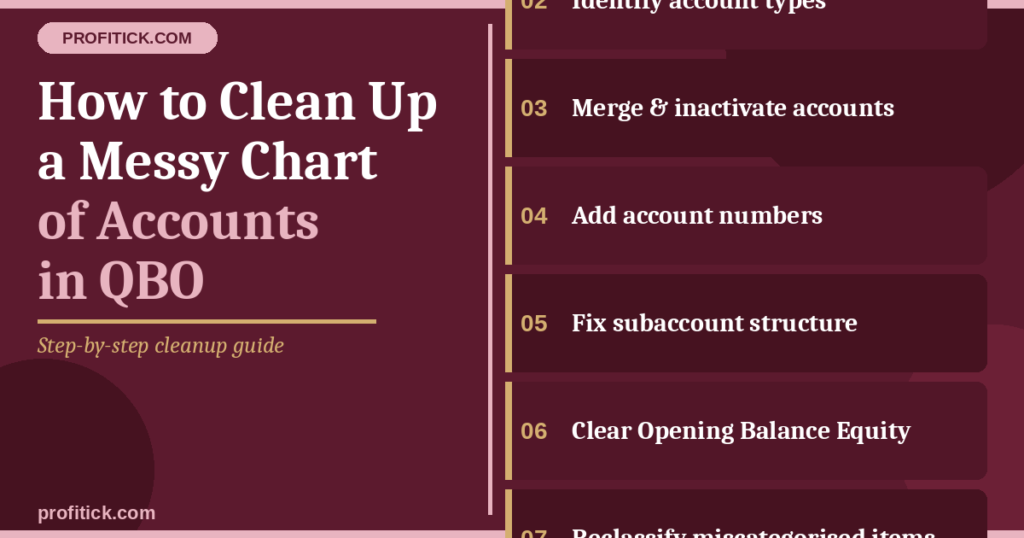
Step 3 — Identify Accounts to Merge, Inactivate, or Keep
This is the core of the cleanup. Go through your COA account by account and put each one in one of three buckets.
Accounts to inactivate (not delete)
An important distinction: never delete accounts in QBO. Deleting removes the account and can orphan historical transactions, breaking your reports and your reconciliation history. Instead, make accounts inactive. Inactive accounts disappear from your working COA but all their historical data stays intact.
Scroll through your Chart of Accounts and pay close attention to any accounts showing a $0.00 balance. Some of these were automatically set up by default when you first began using QuickBooks, or they may just no longer be necessary.
To inactivate an account: go to Accounting → Chart of Accounts, find the account, click the dropdown arrow on the right, and select Make Inactive.
Good candidates for inactivation:
- Default QBO accounts you’ve never used (common examples: “Ask My Accountant,” “Uncategorized Asset,” “Opening Balance Equity” once it’s been cleared)
- Old bank or credit card accounts that are closed
- Accounts created for a one-time expense that has no ongoing activity
- Duplicate accounts with zero balance
Accounts to merge
If you have two or more accounts that represent the same thing — “Office Supplies” and “Office Expenses,” for example — you can merge them. Merging combines all historical transactions from both accounts into one, permanently.
To merge: rename the account you want to eliminate so it has the exact same name as the account you want to keep. QBO will ask if you want to merge them. Confirm yes.
Important warning: merging is irreversible. Make sure both accounts truly represent the same category before merging, and always do this with your exported backup on hand.
Accounts to keep (and possibly rename)
Some accounts are used regularly but need to be renamed for clarity. Consistent, descriptive naming matters — both for your own reporting and for anyone else who works in your books.
Good naming conventions:
- Be specific: “Software Subscriptions” instead of “Computer Expenses”
- Be consistent: if you use title case, use it everywhere
- Avoid abbreviations unless they’re universally understood
- Don’t use the word “misc” — if something is truly miscellaneous, create a proper category for it
Step 4 — Add Account Numbers (If You Don’t Have Them)
Account numbers are optional in QBO but they make a significant difference in larger COAs. They force your accounts into a logical order and make navigation much faster.
The standard numbering system:
- 1000s — Assets
- 2000s — Liabilities
- 3000s — Equity
- 4000s — Income
- 5000s — Cost of Goods Sold
- 6000s — Expenses
To turn on account numbers: go to Settings → Account and Settings → Advanced → Chart of Accounts → Turn on account numbers.
Once enabled, you can assign numbers to each account. Leave gaps in your numbering (1010, 1020, 1030 rather than 1001, 1002, 1003) so you have room to add accounts in the future without renumbering everything.
Step 5 — Review and Fix Your Subaccount Structure
Subaccounts are one of the most powerful features in QBO’s COA — and one of the most commonly misused.
A subaccount sits under a parent account and lets you track detail without cluttering your top-level reports. For example:
Payroll Expenses (parent)
- Salaries (sub)
- Payroll Taxes (sub)
- Benefits (sub)
Done well, this gives you a clean Profit & Loss at the parent level and detail when you need it. Done badly — subaccounts nested three or four levels deep, or subaccounts that should be separate parent accounts — it creates more confusion than it solves.
Rules for clean subaccount structure:
- Maximum two levels deep in most cases (parent + one sub level)
- Every subaccount should logically belong under its parent
- If a category is significant enough to track independently, make it a parent account, not a sub
- Don’t create subaccounts just to add detail — ask whether you’ll actually use that detail in reports
Step 6 — Check Your Opening Balance Equity Account
This one catches a lot of people off guard. Your Chart of Accounts is the main source of your accounting system as every transaction flows through it. The Opening Balance Equity account is created by QBO when you first set up your books and enter opening balances. In a properly set-up file, this account should have a zero balance once your setup is complete.
If your Opening Balance Equity account still has a balance, it means something was entered incorrectly during setup — typically an asset or liability was recorded without its offsetting entry. This needs to be cleaned up with a journal entry, ideally with your accountant’s guidance, before you close it out.
Go to Accounting → Chart of Accounts, find “Opening Balance Equity,” and check its balance. If it’s not zero, flag it for review.
Step 7 — Reclassify Miscategorized Transactions
Once your COA is clean, you’ll likely find transactions that were posted to the wrong accounts — either because the old account was wrong, or because they landed in “Uncategorized Expense” or “Ask My Accountant” and never got properly assigned.
Use the Reclassify Transactions tool in QBO (available in the Accountant Tools menu if you have an accountant version, or via the Reports menu otherwise). This lets you move multiple transactions from one account to another in bulk — far faster than editing them one by one.
Filter by the accounts you want to clean up, select the transactions, choose the correct account, and reclassify. Your reports update automatically.
Step 8 — Set Rules to Keep It Clean Going Forward
A cleaned-up COA only stays clean if new transactions get categorized correctly from day one. Bank rules in QBO let you automate this.
Go to Banking → Rules → New Rule. You can set conditions (payee name contains, amount is greater than, etc.) and tell QBO to automatically categorize matching transactions to a specific account. Once set up, this dramatically reduces the time you spend categorizing transactions manually — and eliminates the “I’ll categorize this later” pile that causes COA creep in the first place.
Recommended rules to set up:
- All transactions from your payroll provider → Payroll Expenses
- Recurring software subscriptions by vendor name → Software Subscriptions
- Your regular office rent → Rent Expense
- Bank fees and service charges → Bank Charges
Signs Your Chart of Accounts Is Now Clean
Once you’ve worked through all eight steps, your COA should pass this quick check:
- Every account type (asset, liability, equity, income, expense) is used correctly with no misclassifications
- No accounts named “Misc,” “Other,” “Ask My Accountant,” or “Uncategorized” with active balances
- Duplicate accounts have been merged or inactivated
- Subaccounts are no more than two levels deep
- Opening Balance Equity is at zero
- Account numbers are assigned and follow a logical system
- Your Profit & Loss is readable at a glance without scrolling through pages of micro-categories
What NOT to Do When Cleaning Up Your COA
Don’t delete accounts. Ever. Make them inactive instead. Deleting loses the transaction history tied to that account.
Don’t merge accounts without checking the transaction history first. Run a report on each account before merging to confirm they truly represent the same thing.
Don’t reclassify transactions in a prior year without understanding the tax implications. Moving expenses from one year to another changes your taxable income for that year. If you’re cleaning up historical data across multiple years, loop in your accountant before reclassifying anything prior to the current tax year.
Don’t create new accounts every time you have an unusual expense. Use “Other Expenses” or an appropriate existing category for true one-offs. New accounts should only be created when there’s a recurring category that doesn’t have a home.
When to Hire a Bookkeeper for COA Cleanup
For a straightforward COA that’s been in use for a year or two, most business owners can work through this process themselves. But there are situations where professional cleanup is worth every dollar:
- You’ve inherited a QBO file from a previous bookkeeper and don’t know the history behind the account structure
- Your books span multiple years and reclassifying transactions would affect prior tax filings
- Your business has grown significantly and the COA no longer reflects what you actually do
- You’re preparing for a business sale, investor review, or loan application and need spotless financials
COA cleanup is one of the services I offer through Profitick. If your QBO books need a full structural overhaul before tax season or a financial review, book a free 20-minute cleanup consultation here and I’ll assess where the gaps are.
Frequently Asked Questions
What is a Chart of Accounts in QuickBooks Online?
A Chart of Accounts is the complete list of categories your business uses to record every financial transaction. Every time money comes in or goes out, it gets assigned to an account in the COA. It feeds directly into your Profit & Loss, Balance Sheet, and every other financial report in QBO.
Can I delete accounts in QuickBooks Online?
You can, but you shouldn’t. Deleting an account in QBO removes its historical data from your reports. The correct approach is to make the account inactive — this hides it from your active COA and dropdown menus while preserving all the transaction history tied to it.
How do I merge duplicate accounts in QuickBooks Online?
Rename the account you want to eliminate so it has the exact same name as the account you want to keep. QBO will prompt you to confirm the merge. This is permanent and cannot be undone, so make sure both accounts truly represent the same category before proceeding.
How many accounts should a small business have in QBO?
There’s no universal answer, but as a general rule a small service-based business rarely needs more than 50–80 accounts. If your COA has hundreds of accounts, it’s almost certainly overbuilt. A leaner, well-structured COA with 40–60 accounts gives you cleaner reports and easier day-to-day bookkeeping.
How often should I review my Chart of Accounts?
At minimum once a year — ideally at the start of a new fiscal year before activity builds up. A quick quarterly review to inactivate unused accounts and catch naming inconsistencies keeps the COA from getting out of hand between annual cleanups.
Final Thoughts
A clean Chart of Accounts is the foundation of every useful financial report your business produces. It’s not glamorous work, but getting it right means your Profit & Loss actually tells you something, your tax prep goes faster, and your books are something you can hand to a banker, investor, or accountant without embarrassment.
Work through the eight steps above methodically, keep your exported backup on hand, and don’t rush the merge decisions. The whole process usually takes two to four hours for a small business COA — and the clarity it creates in your reports is worth every minute.
If you want a printable reference to work from, download the free Profitick COA Cleanup Checklist here — one page, every step in order.
Anam Gul is an accountant and bookkeeper with experience across QuickBooks Online, and Tally ERP. She runs Profitick.com, a resource hub for small business owners navigating bookkeeping and personal finance.